An Object Generator is at its best on a phone. It is the device you already have in your pocket at a party, in a classroom, or at a coffee-shop sketch session — no laptop required. A well-built generator works just as smoothly with a thumb as with a mouse, and a few small habits make mobile use noticeably better.
This guide covers one-handed operation, running group games from a single phone, saving results without cloud accounts, and getting the tool working offline.
Why Mobile Is the Natural Format
Most of the situations where you need a random object are not desk situations. You are standing in a classroom, sitting in a circle of friends, or on a train with a sketchbook. The phone is the only device present.
A generator that runs entirely in the browser suits this well. There is nothing to install, no account to create, and after the first load it keeps working on a weak signal — which matters more in a school hall or a busy cafe than most people expect.
The best tool for a party game is the one already in someone's pocket, not the one that needs setting up.
One-Handed Operation
Phones are usually held in one hand while the other is drawing, holding a drink, or gesturing at a room. A few practical habits:
- Set up before you need it. Choose categories and object count once, at the start. Mid-game fiddling with settings is what breaks the flow.
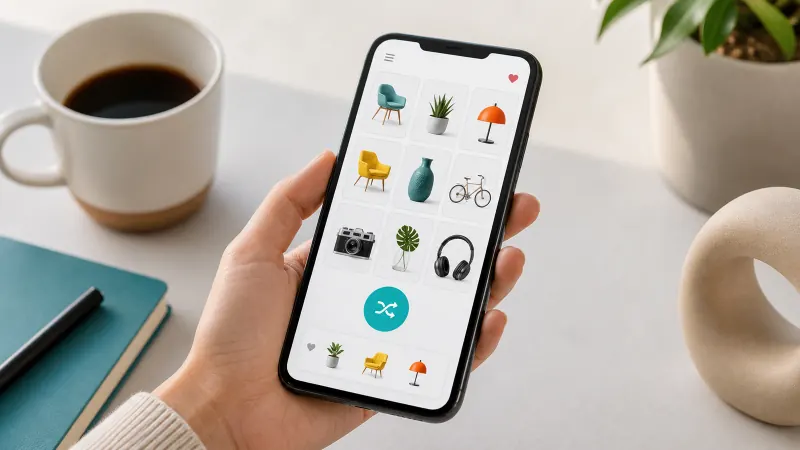
- Generate a batch, not one at a time. Drawing sixteen objects in one press means you scroll rather than tap repeatedly — far easier with a thumb.
- Use the grid view for scanning, list view for reading aloud. Grid shows more at once; list is easier to follow with a finger.
- Rotate to landscape for group viewing. Larger text, more objects visible, easier for several people to read from one screen.
Running a Group From One Phone
This is the most common mobile use case and it has a few specific tricks.
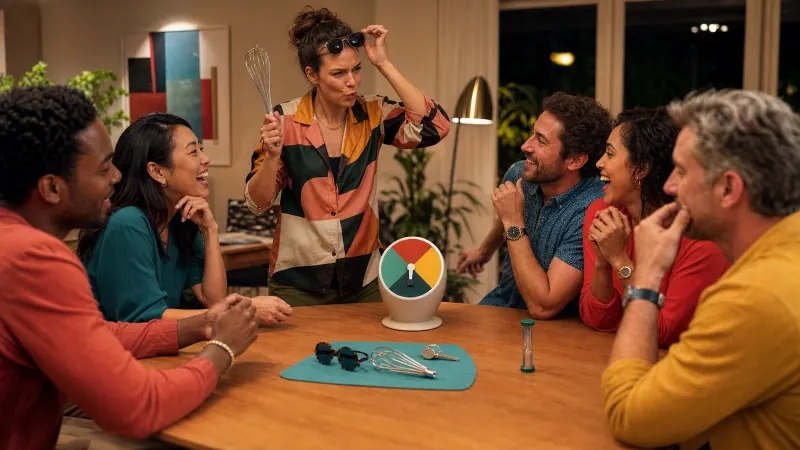
- Draw the whole session in advance. Twenty-four objects with no-repeat on covers an entire evening, so you never pass the phone back to the tool.
- Nominate one holder. One person reads prompts and keeps score. Passing a device around each round is the single biggest source of dead time.
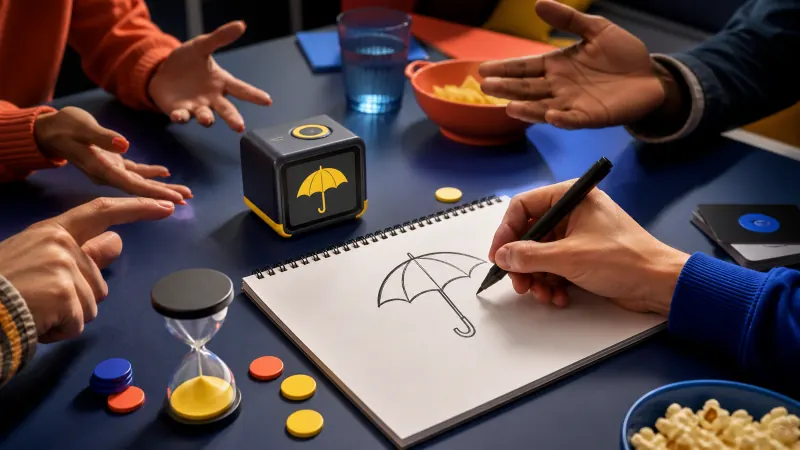
- For drawing and miming games, shield the screen. Turn brightness down and hold it close — simpler than any privacy feature.
- Screenshot the batch. A screenshot survives an accidental refresh, which will otherwise lose your list mid-game.
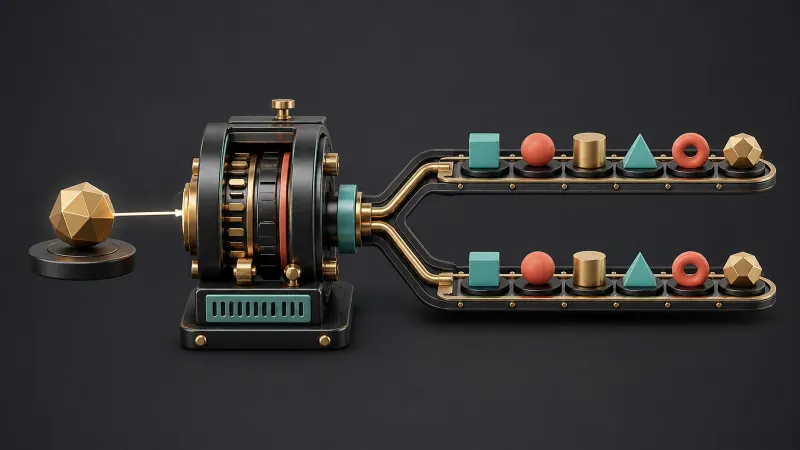
That last point is worth taking seriously. A stray reload during a party is genuinely disruptive, and a screenshot costs nothing. Alternatively, note the seed — entering it again restores the identical batch. Seeds work like this.
Saving Results Without an Account
Because everything runs on the device, saving works differently from a cloud app — and mostly better.
| What you want | How to do it |
|---|---|
| Keep a favourite object | Tap the heart; favourites persist on that device |
| Keep a whole batch | Note the seed, or take a screenshot |
| Share one object | Copy it, or download the card as an image |
| Share a whole set | Send the seed and your settings |
| Use prompts in a document | Export the batch as TXT or CSV |
Favourites are stored in your browser's local storage on that device only. Nothing is uploaded, which also means clearing your browser data clears them — so note the seed for anything you would be annoyed to lose.
Using It Offline
After the first visit the generator keeps working without a connection, which makes it genuinely useful on planes, in cars and in buildings with poor signal.
To make this reliable, load the page once while you still have signal, and add it to your home screen. On both iOS and Android this creates an app-style icon that opens full screen without browser chrome — more screen for the objects and a faster launch. Do this before a long journey rather than after.
Battery and Screen Habits
For long sessions, two adjustments help. Reduce brightness, since a static list of words does not need full output, and disable auto-lock while running a game so the screen does not sleep between rounds. Re-enable it afterwards.
The tool itself is lightweight — it does no continuous network work and no heavy computation between presses — so battery drain comes almost entirely from the display rather than the generator.
Mobile Drawing Sessions
If you are sketching from a phone prompt, prop the device rather than holding it. A cheap stand, a leaning cup or a propped case all work, and freeing the second hand makes a real difference over a thirty-minute study. Generate five objects at the start so you are not touching the screen with a graphite-covered hand mid-session. Our drawing practice guide covers session structures in more detail.
Common Mobile Frustrations, Solved
| Problem | Cause | Fix |
|---|---|---|
| Batch disappeared | Browser reloaded the tab in the background | Screenshot the batch, or re-enter the seed |
| Favourites vanished | Browser data or private mode cleared storage | Avoid private browsing; note seeds for anything important |
| Text too small to read aloud | Portrait orientation with a large batch | Rotate to landscape, or generate fewer per screen |
| Screen sleeps mid-game | Auto-lock timeout | Extend or disable auto-lock for the session |
| Accidental taps change settings | Controls reached while scrolling | Set up once, then scroll only in the results area |
The first row is by far the most common. Phone browsers reclaim memory aggressively, and a tab left in the background during a game can silently reload when you return to it. Noting the seed takes two seconds and makes the batch permanently recoverable.
Frequently Asked Questions
Is there an app to install?
No installation is needed. Adding the page to your home screen gives you an app-style icon and full-screen launch without an app store download.
Does it work offline?
Yes, after the first load. Settings and favourites are stored locally, so they survive going offline too.
Will my favourites sync between phone and laptop?
No. Storage is per-device by design, which is what keeps the tool account-free. Use a seed to move a specific set between devices.
Does it use much data?
Very little. The page loads once and then generates locally — pressing the button again sends no network request at all.
Can several people generate the same objects on their own phones?
Yes. Share a seed and matching settings, and everyone gets an identical batch.
Set It Up in Thirty Seconds
Open the Object Generator on your phone, choose your categories, draw a batch, and add the page to your home screen. Next time you need a prompt at a party or in a classroom, it is one tap away and works with no signal at all.